The approval workflow ensures that changes in Q.wiki are reviewed and approved in a structured way. Since June 2025, we offer a modernized workflow that differs significantly from the older system in terms of appearance and technology.
Overview
To eliminate the need for manual approvals, we have gradually switched to the new approval workflow.
Prerequisites for the migration
- There are no modules with customized approval workflows that the new workflow cannot map.
What happens during migration
- All pending approvals are reset and triggered again.
- Content in your drafts or change proposals remains unchanged – the page owner is automatically asked for approval again.
- This transition appears in the history as a revision from "Q.wiki Migration".
Benefits of the new workflow
- Modern display on the right sidebar
- Approvals are created as open tasks and remain open until completed
- Self-configurable approval levels (coming soon)
For more information, see the Release Notes (external).
New two-level approval workflow
How the new workflow works
Step 1: Create a change proposal
Click the Propose change button to create a change proposal for the published page.

- Any user with edit permissions can create and edit a change proposal.
- There is always only one change proposal per page – multiple people can work on it over time.
- Even after submitting the proposal for content review, you can continue editing the page.
- Every change proposal must go through the approval process for the changes to be transferred to the published version.
- After successful approval, a new change proposal can be created.
Step 2: Start the workflow
- Save your change proposal.
- The approval workflow is located behind the top icon in the right sidebar.
- Click Compare with published version to review your changes.
- Click Submit proposal.
Alternatively, you can discard the proposal: Select Discard change proposal and then Change status. The change proposal will be deleted and you can create a new one.
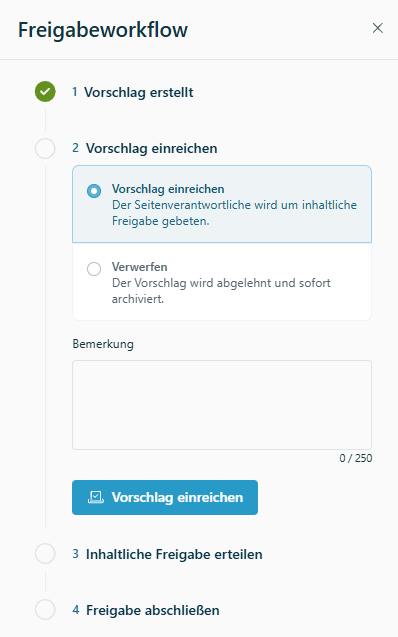
Step 3: Content approval
After submission, the page owner automatically receives a task (in the Task overview or optionally by email) with a request for content approval.
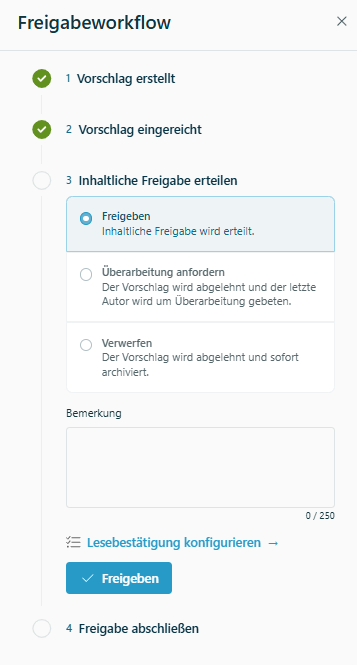
In the two-level approval workflow:
- Content approval is performed by the page owner.
- Formal approval is performed by members of the Q.wiki group
QM Group.
Step 4: Formal approval
After content approval, a task is automatically assigned to all members of the configured group (by default QM Group).
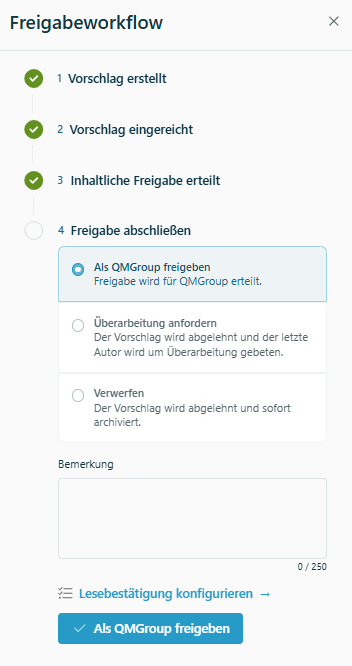
The QM reviewer can respond in three ways:
- Formally approve change proposal: The change proposal becomes the new published version, the version number is incremented, and a new change proposal can be created.
- Request further revision: The last author is notified and the change proposal can be edited again. All involved parties are informed.
- Discard change proposal: The published version remains unchanged, the change proposal is deleted. All involved parties are notified.
Use Compare with published version to review the changes before making a decision.
Who performed the approval?
Under "Approved by" you will first see the name of the person who approved the content (usually the same as the page owner). Next to it is the person who performed the formal approval and is a member of the QM Group.

Old two-level approval workflow
This documentation is relevant if your system has not yet migrated to the new workflow.

How the old workflow works
Step 1: Create a change proposal
Click the Propose change button to create a change proposal for the published page.

- Any user with edit permissions can create and edit a change proposal.
- There is always only one change proposal per page – multiple people can work on it over time.
- Once a request for approval is made, the change proposal is locked for editing.
- Every change proposal must go through the approval process for the changes to be transferred to the published version.
- After successful approval, a new change proposal can be created.
Step 2: Start the workflow
- Save your change proposal.
- The approval workflow is located at the bottom of the page.
- In the "Status" row you can see the current status.
- Click Compare with published version to review your changes.
- Select Request approval and then Change status.
Alternatively, you can discard the proposal: Select Discard change proposal and Change status. The change proposal will be deleted and you can create a new one.

Step 3: Content approval
After your request, the page owner automatically receives a message (by email and/or in their task list) asking for content approval.

The page owner can respond in three ways:
- Approve content: The next level (e.g., the QM department) is asked for approval.
- Request further revision: The last author is notified and the change proposal can be edited again.
- Discard change proposal: The published version remains unchanged, the change proposal is deleted.
Use Compare with published version to review the changes.
Step 4: Formal approval
After content approval, the QM department automatically receives a message requesting formal approval.

The QM reviewer can respond in three ways:
- Formally approve change proposal: The change proposal becomes the new published version, the version number is incremented, and a new change proposal can be created.
- Request further revision: The last author is notified and the change proposal can be edited again.
- Discard change proposal: The published version remains unchanged, the change proposal is deleted.
Use Compare with published version to review the changes.
After formal approval
There is then a new published version:
- The version number is incremented by one.
- A new change proposal can be created.

Video overview
For more information about the old approval workflow, see this video:
Was this article helpful?
That’s Great!
Thank you for your feedback
Sorry! We couldn't be helpful
Thank you for your feedback
Feedback sent
We appreciate your effort and will try to fix the article