Q.wiki is designed to make information transparent and accessible. Hiding content is therefore not the standard approach – if necessary, you should create a dedicated module instead.
If new modules are not an option and individual pages must be protected, you can do so using page permissions. However, read through the risks associated with this first.
Risks of page-level permissions
- No central management: Q.wiki offers no overview of all protected pages and no global way to manage permissions. Administrative effort grows with every additional protected page.
- Confusion for users: When a user clicks a link to a protected page, they see an error message. This is often misunderstood as a bug, since users don't expect "hidden" content in Q.wiki.
- No inheritance of permissions: Settings apply only to the specific page. If you create a sub-page, it is public by default – the protection is not inherited.
- Difficult to test: To verify that your settings work, you need a test user without access or must involve Key Users.
Setting up page-level permissions
Step 1: Create a group
Create a group with the users who should be able to see the page. See the guide to group management.
Important for approval workflows:
- In a two-stage approval workflow: The page owner and at least one person from the
QMGroupmust be in the group. Otherwise, the workflow will no longer function. - In a one-stage approval workflow: The page owner must be part of the group.
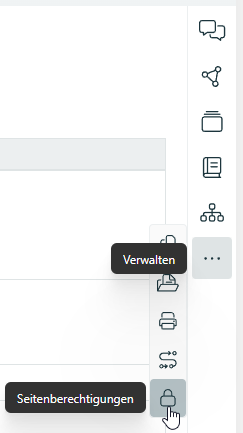
Step 2: Open page permissions
Go to the three-dot menu in the right sidebar and select Page permissions.
Step 3: Understand the default setting
In the dialog, you see the default permission setting:
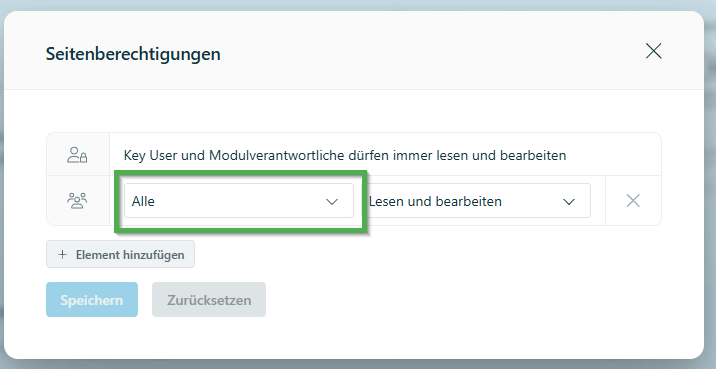
Step 4: Assign exclusive permissions
Now you replace Everyone with your new group. This creates an exclusive permission – which means: as soon as you swap out "Everyone", all other groups are automatically excluded. If you're not careful, you'll also exclude the page owner or QM Group, breaking the approval workflow.
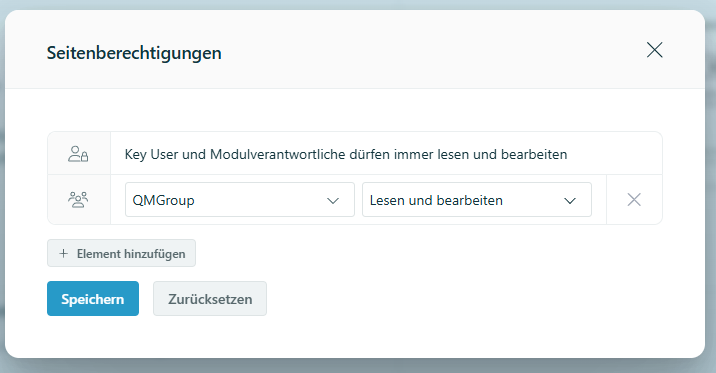
Step 5: Save and publish
With this setting, Key Users and QM Group can see the page. If the page owner is not part of any of the configured groups, they cannot edit the page. Save the dialog by clicking Save and publish the page.
Run a test
Testing with an unauthorized user is important. This user must not have access to the protected page.
Disable approval workflow (optional)
For protected pages, it can make sense to disable the approval process. See Disable approval workflow on a page.
Was this article helpful?
That’s Great!
Thank you for your feedback
Sorry! We couldn't be helpful
Thank you for your feedback
Feedback sent
We appreciate your effort and will try to fix the article